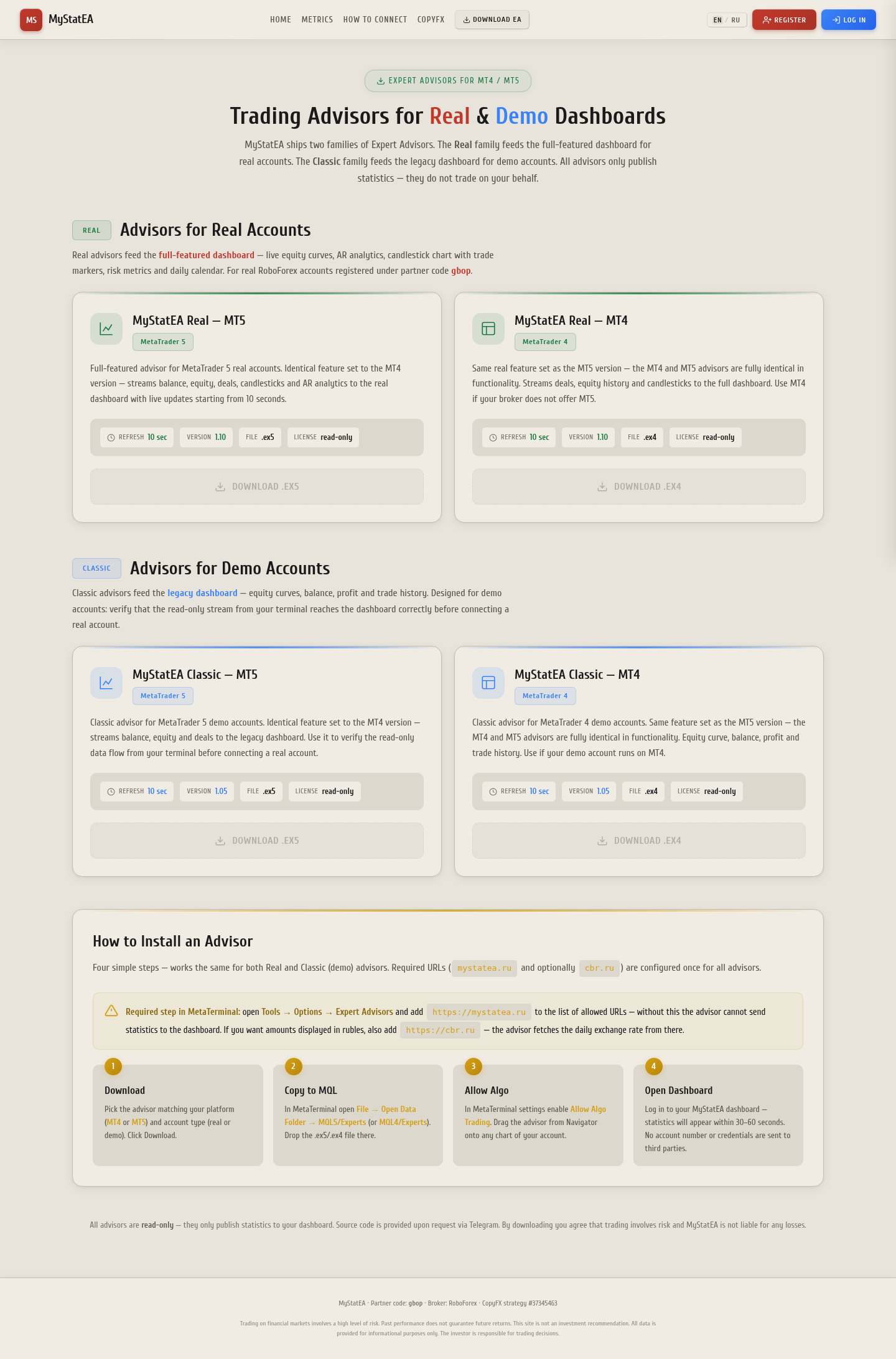
Installing an Expert Advisor (EA) in MetaTrader 5 is a simple procedure that takes 2-3 minutes. In this article we'll go through every step in detail, with screenshots and explanations. Suitable even for those who are working in MT5 for the first time.
What Is an EA and Why Do You Need One
An Expert Advisor (EA) is a program in the MQL5 language that runs inside MetaTrader 5 and performs automatic actions: analyzes the market, opens/closes trades, or (as in the case of MyStatEA) only reads account data and sends it to an external server.
There are two types of advisors:
- Trading — open and close trades according to an algorithm. Require careful setup and testing.
- Monitoring — don't trade, only read account data (balance, positions, trades) and send it to a dashboard or Telegram. Example — MyStatEA.
MyStatEA is a monitoring advisor. It cannot open or close a trade, and has no access to your money. Its only job is to send your account statistics to the dashboard.
Step 1 — Download the EA File
The advisor is distributed as a compiled file:
- For MT4: file with the
.ex4extension - For MT5: file with the
.ex5extension
You can download MyStatEA for free on the mystatea.ru/ea/ page. The latest version 1.10 is available for both platforms. A screenshot of the download page is shown at the top of the article.
Step 2 — Open the Experts Folder in MT5
Launch MetaTrader 5. From the top menu, click:
File → Open Data FolderA folder will open in Windows Explorer. Navigate to:
MQL5 → ExpertsThis is the folder where all advisors are stored. The full path is usually:
C:\Users\<Name>\AppData\Roaming\MetaQuotes\Terminal\<hash>\MQL5\Experts\Don't put the file in MQL5\Indicators (that's for indicators) or in MQL5\Scripts (for scripts). Only MQL5\Experts — advisors only work from here.
Step 3 — Copy the EA File
Copy the downloaded file MyStatEA_1-10.ex5 into the Experts folder. After copying, the structure should look like this:
Experts/
├── MyStatEA_1-10.ex5      ← your file
├── MACD Sample.ex5        ← example from MetaQuotes
└── ...
Step 4 — Restart MetaTrader 5
Close MT5 (File → Exit) and open it again. This is necessary so the terminal can scan the Experts folder and see the new file.
After restarting, open the "Navigator" window (Ctrl+N). In the "Advisors" section, MyStatEA_1-10 should appear:
Navigator → Advisors → MyStatEA_1-10If the advisor isn't there, check that:
- The file is actually in the
MQL5/Expertsfolder - The file extension is exactly
.ex5(not.mq5— that's source code, it won't run without compilation) - You restarted MT5 after copying
Step 5 — Allow WebRequest for mystatea.ru
MyStatEA sends data to the server via WebRequest — a built-in MT5 function for HTTP requests. By default, MT5 blocks all external requests, so you need to explicitly allow our URL.
Open the settings: Tools → Options → Expert Advisors
In the lower part of the window, find the "Allow WebRequest for listed URL" section. Check the box and add the address:
https://mystatea.ruClick OK. Without this setting, the advisor won't be able to send data to the dashboard — the log will show error 406 or 4014 (WebRequest not allowed).
The URL must be entered with https:// — without a trailing slash. If you enter https://mystatea.ru/ (with slash) or mystatea.ru (without protocol), MT5 may not recognize the domain.
Step 6 — Drag the EA onto a Chart and Enable AutoTrading
Open any chart (e.g., XAUUSD M5). In the "Navigator" window, find MyStatEA_1-10, hold the left mouse button and drag it onto the chart.
The advisor settings window will open. For MyStatEA, it's enough to:
- "Common" tab: check "Allow Algo Trading" — this is MANDATORY
- "Inputs" tab: leave the default values — all settings are hardcoded, nothing to change
- Click OK
On the top panel of MT5, make sure the "AutoTrading" button (green circle with white arrow) is on — lit green. If off, click it.
In the upper-right corner of the chart, an icon should appear:
- 😀 Smiley face — the advisor is working
- 😠 Sad face — AutoTrading is disabled
- ❌ X mark — the advisor didn't start, check the experts log
Step 7 — Verify That Data Is Flowing
For monitoring advisors (like MyStatEA), this is the most important step. Open the dashboard at mystatea.ru/dashboard/?account=YOUR_ACCOUNT — within 5-10 seconds, data should appear: balance and equity, open positions, candlestick chart.
If there's no data, open the "Experts" tab at the bottom of the MT5 terminal (Ctrl+Tab or View → Experts menu). The advisor's logs will be there. They make it easy to understand at which step the problem is.
Common Errors and Solutions
Advisor doesn't appear in Navigator
Cause: the file is in the wrong folder, or you didn't restart MT5.
Solution: check that the file is in MQL5/Experts/, restart MT5. If that doesn't help — in Navigator, right-click "Advisors" → "Refresh".
Advisor is sad (unhappy smiley)
Cause: AutoTrading is disabled.
Solution: click the AutoTrading button on the top panel — it should light up green.
Log shows error 406 or 4014 (WebRequest not allowed)
Cause: the URL https://mystatea.ru is not in the list of allowed WebRequest URLs in MT5 settings.
Solution: Tools → Options → Expert Advisors → check "Allow WebRequest for listed URL" and add https://mystatea.ru (without trailing slash).
Advisor is running, but data doesn't appear on the dashboard
Cause: the account isn't registered on mystatea.ru, or the account number in MT5 doesn't match the one used during registration.
Solution:
- Register at mystatea.ru/register/ with your trading account number
- Make sure you're logged into MT5 with the same account you registered with
- Open the "Experts" tab in MT5 — the log will show the actual error from the server
FAQ — Installing an EA in MT5
Frequently Asked Questions
Can I install an EA on mobile MT5?
Do I need to keep my computer on?
Does MyStatEA need admin rights or DLLs?
WebRequest function to send data via HTTPS — no external DLLs, no access to the file system outside the terminal folder, no admin rights required. This is the safest possible approach: the advisor can't do anything beyond sending statistics to the server.
Can I run multiple advisors at the same time?
Does the advisor use a lot of computer resources?
Conclusion
Installing an advisor in MT5 is a 2-minute task if you follow the instructions. The key points:
- Download the correct version (.ex5 for MT5)
- Put the file in
MQL5/Experts/ - Restart MT5
- Allow WebRequest for
https://mystatea.ruin settings - Drag onto a chart and enable AutoTrading
- Check for the smiley face in the corner of the chart
If you're installing MyStatEA — after these steps, go to the dashboard and make sure the data is updating. If something doesn't work — open the "Experts" tab in MT5, the error log will be there.